
API Access
API Access Guide
Section titled “API Access Guide”Testomat.io provides a robust API that allows users to integrate, automate, and extend their test management workflows. Testomat.io uses JSON API as standard for Request and Response data. Access to the API is secured using Access Tokens, which ensure that only authorized systems and users can interact with your projects.
Access Tokens Overview
Section titled “Access Tokens Overview”There are two main types of access tokens in Testomat.io:
1. General Tokens
Section titled “1. General Tokens”- Provide full API-driven access to all projects within your Testomat.io account.
- Ideal for administrative or automation tasks that span multiple projects.
2. Project Tokens
Section titled “2. Project Tokens”- Limit API access to a specific project only.
- Recommended for importing and reporting.
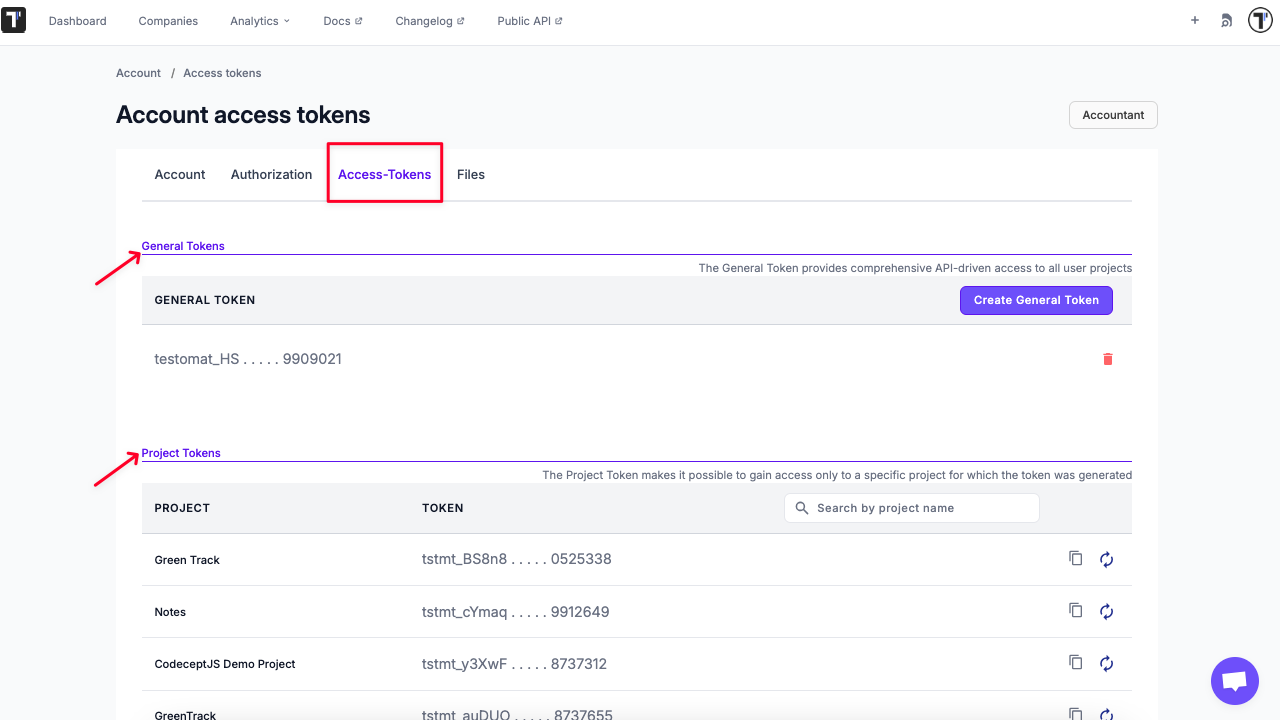
API Authentication with either General Token or Email + Password
Section titled “API Authentication with either General Token or Email + Password”Before interacting with the Testomat.io API, you must authenticate and obtain a JWT token, which is required for all subsequent requests.
You can authenticate in one of two ways:
Option 1 Log In Using Your API Token
Section titled “Option 1 Log In Using Your API Token”Request Example:
POST /api/login
{  "api_token": "testomat_EXAMPLETOKENt7dp5VFPR_h8b8SO12EXAMPLETOKEN"};
Option 2 Log In Using Your Email + Password
Section titled “Option 2 Log In Using Your Email + Password”Request Example:
POST /api/login
{  "email": "test.testomat@gmail.com",  "password": "Test123!"};
Step 2: Receive JWT Token
Section titled “Step 2: Receive JWT Token”After sending your login request, you’ll receive a JSON Web Token (JWT) in the response. This token is used to authenticate all subsequent API calls.
Response Example:
{ "jwt": "eyJhbGciOiJIUzI1NiIsInR5cCI6IkpXVCJ9"}Step 3: Use the JWT for Authorization
Section titled “Step 3: Use the JWT for Authorization”Include the received JWT in the Authorization header for all subsequent API requests.
Listing Suites and Tests
Section titled “Listing Suites and Tests”Because test suites are nested, you’ll need to fetch them in multiple requests to reconstruct the full hierarchy.
Step 1 List Root Suites
Section titled “Step 1 List Root Suites”GET /api/<project_name>/suitesStep 2: Fetch Child Suites
Section titled “Step 2: Fetch Child Suites”Iterate over each returned suite ID and retrieve its details:
GET /api/<project_name>/suites/:suite_idRepeat this process recursively for each child suite to build the complete suite + test tree.
Each suite response includes:
-
Suite metadata (name, ID, description, etc.)
-
Child suite IDs
-
Tests contained within that suite
Working with Runs Results
Section titled “Working with Runs Results”You can use the API to list, create, and inspect runs within a project.
Important: In the testomat.io API, the path parameters /run/... and /testrun/... refer to two different resources:
/run/...endpoints return information about a Run — the execution session itself — including the list of tests that belong to it./testrun/...endpoints return Test Run records — the results of individual tests executed within a run.
List Runs
Section titled “List Runs”Retrieve all test runs associated with a project.
GET /api/{project_id}/runsGet Run Details
Section titled “Get Run Details”Retrieve details of a specific run by ID.
GET /api/{project_id}/run/{id}To get all test results from a specifc run:
GET /api/{project_id}/testruns?run_id={run_id}API Reference
Section titled “API Reference”For a complete list of available endpoints, request parameters, and schemas, see the official documentation:
Importing and Reporting with Project Token
Section titled “Importing and Reporting with Project Token”Project Tokens are used when working with Importing and Reporting APIs in Testomat.io. These tokens provide access specifically for operations such as importing tests or reporting test results to a given project.
Please check the documentation below for for details: